
Course Content & Modules
Access organized course modules, videos, and learning materials
Course Content & Modules
The Course Content & Modules feature allows you to access structured learning content organized into sections and modules. You can watch videos, read materials, download files, and track your learning progress.
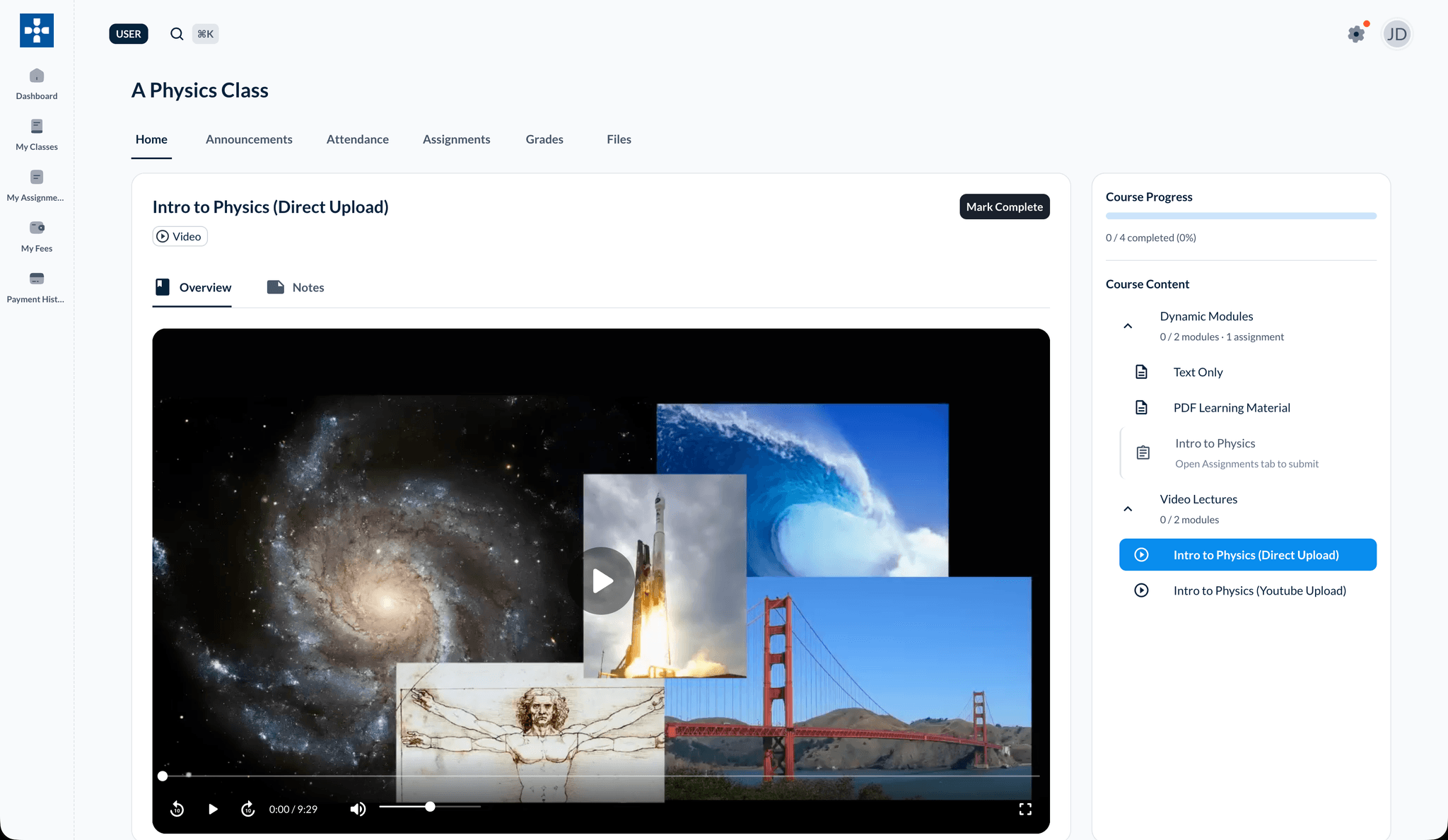
Overview
Course Content & Modules enables you to:
- View organized course sections and modules
- Watch video content
- Read text-based content
- Download files and resources
- Track module completion
- Monitor your learning progress
Accessing Course Content
Navigation
- Go to your class details page
- Click on the "Home" or "Modules" tab
- You'll see the course content organized into sections
Understanding Course Structure
Sections
Courses are organized into sections:
- Sections group related modules together
- Examples: "Week 1: Introduction", "Chapter 1: Basics"
- Click to expand/collapse sections
- Sections appear in order
Modules
Within each section are modules:
- Each module contains specific content
- Modules may include videos, text, files, or combinations
- Click on a module to access its content
- Complete modules to track progress
Viewing Module Content
Opening a Module
- Navigate to the desired section
- Click on a module title
- Module content opens
- View all content in the module
Module Content Types
Video Content
- Watch embedded videos directly
- Videos may be from YouTube, Vimeo, or uploaded files
- Play videos within the module
- Videos are part of your learning materials
Text Content
- Read written content
- Content may include:
- Lesson explanations
- Reading materials
- Instructions
- Additional information
File Attachments
- Download attached files
- Files may include:
- PDF documents
- Presentations
- Worksheets
- Additional resources
Module Completion
Marking Modules Complete
- After viewing module content
- Click "Mark as Complete" button (if available)
- Module is marked as completed
- Progress is tracked automatically
Progress Tracking
- See your completion percentage
- View which modules you've completed
- Track overall course progress
- Identify remaining content
Video Content
Watching Videos
- Click on a video module
- Video player opens
- Play, pause, and control playback
- Adjust volume and quality settings
Video Features
- Playback Controls: Play, pause, seek
- Volume Control: Adjust audio
- Fullscreen: Watch in fullscreen mode
- Speed Control: Adjust playback speed (if available)
Downloading Files
Accessing Files
- In a module with file attachments
- View list of available files
- Click "Download" on any file
- File downloads to your device
File Types
Common file types include:
- PDF documents
- Word documents
- PowerPoint presentations
- Images
- Spreadsheets
- Other resources
Progress Overview
Viewing Your Progress
- Check progress indicators on modules
- See completion status:
- Completed: Module finished
- In Progress: Partially viewed
- Not Started: Not yet accessed
- View overall course completion percentage
Best Practices
Troubleshooting
Issue: Videos not playing
- Solution: Check your internet connection. Ensure video is accessible. Try a different browser if needed.
Issue: Files not downloading
- Solution: Check browser download settings. Ensure pop-ups are allowed. Try right-clicking and "Save As".
Issue: Progress not saving
- Solution: Ensure you're logged in. Refresh the page. Contact support if progress continues not to save.
Related Topics
- My Classes - Learn about accessing your classes
- Viewing Assignments - Understand assignments related to modules