
Submitting Assignments
Step-by-step guide to submitting your assignments
Submitting Assignments
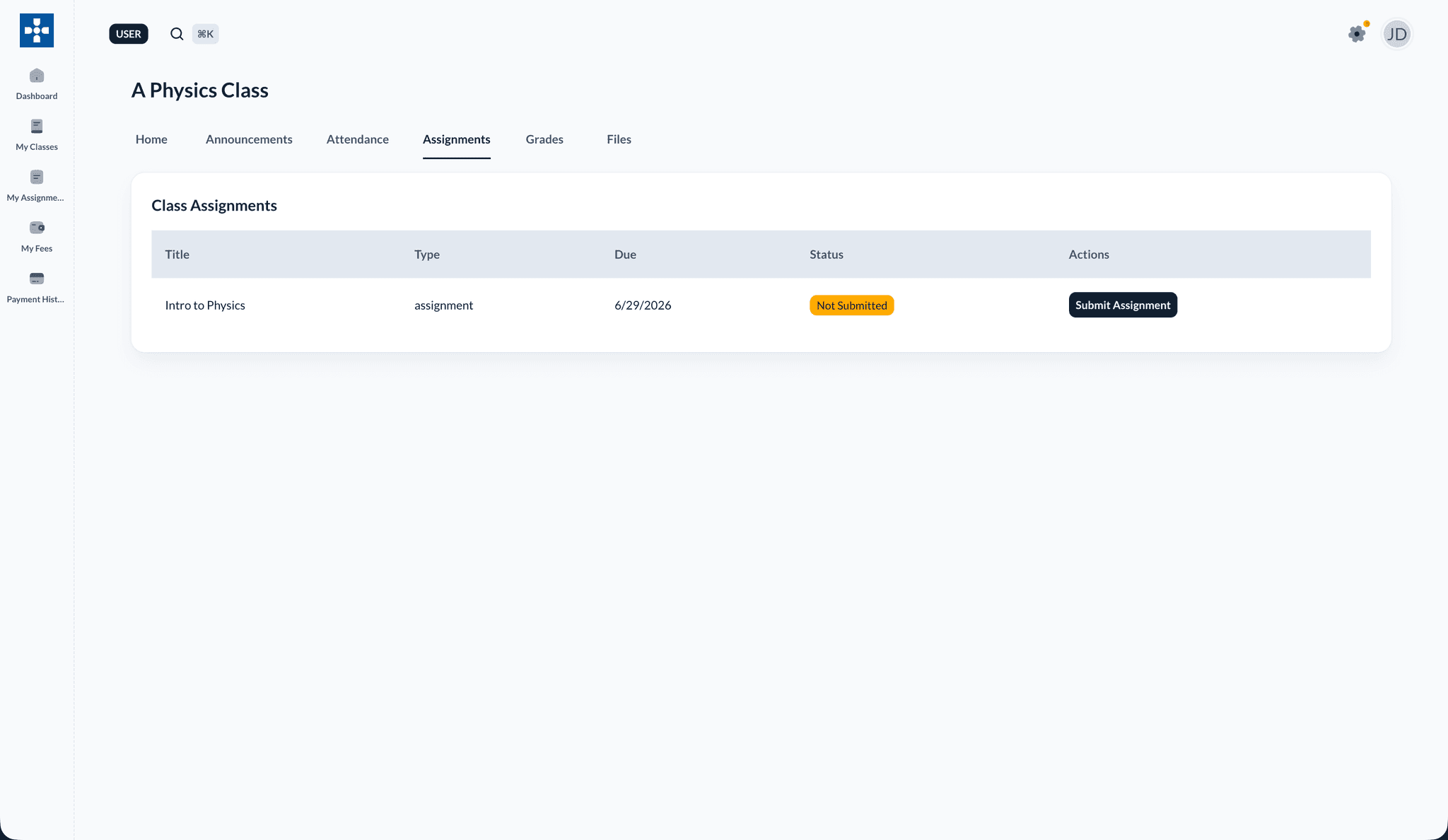
The Submitting Assignments section guides you through the process of submitting your completed work, including file uploads and text submissions.
Overview
Submitting Assignments enables you to:
- Submit completed assignments
- Upload files (documents, images, etc.)
- Enter text-based submissions
- Review submissions before submitting
- Edit or resubmit (if allowed)
- Confirm successful submission
Preparing Your Submission
Before Submitting
Make sure you have:
- ✅ Completed the assignment according to instructions
- ✅ Reviewed all requirements
- ✅ Checked file format requirements
- ✅ Verified file size limits
- ✅ Saved your work properly
- ✅ Reviewed your work for errors
File Requirements
Check the assignment for:
- Allowed File Types: PDF, DOC, DOCX, images, etc.
- Maximum File Size: Usually specified in MB
- Number of Files: Single or multiple files allowed
- Naming Convention: Any specific file naming requirements
Submitting an Assignment
Step 1: Access Submission Page
- Log in to the student dashboard
- Go to "My Assignments"
- Find the assignment you want to submit
- Click "Submit" or "Submit Assignment" button
Step 2: Review Assignment Details
- Review the assignment requirements one more time
- Check the due date and time
- Verify submission requirements
- Ensure you have everything ready
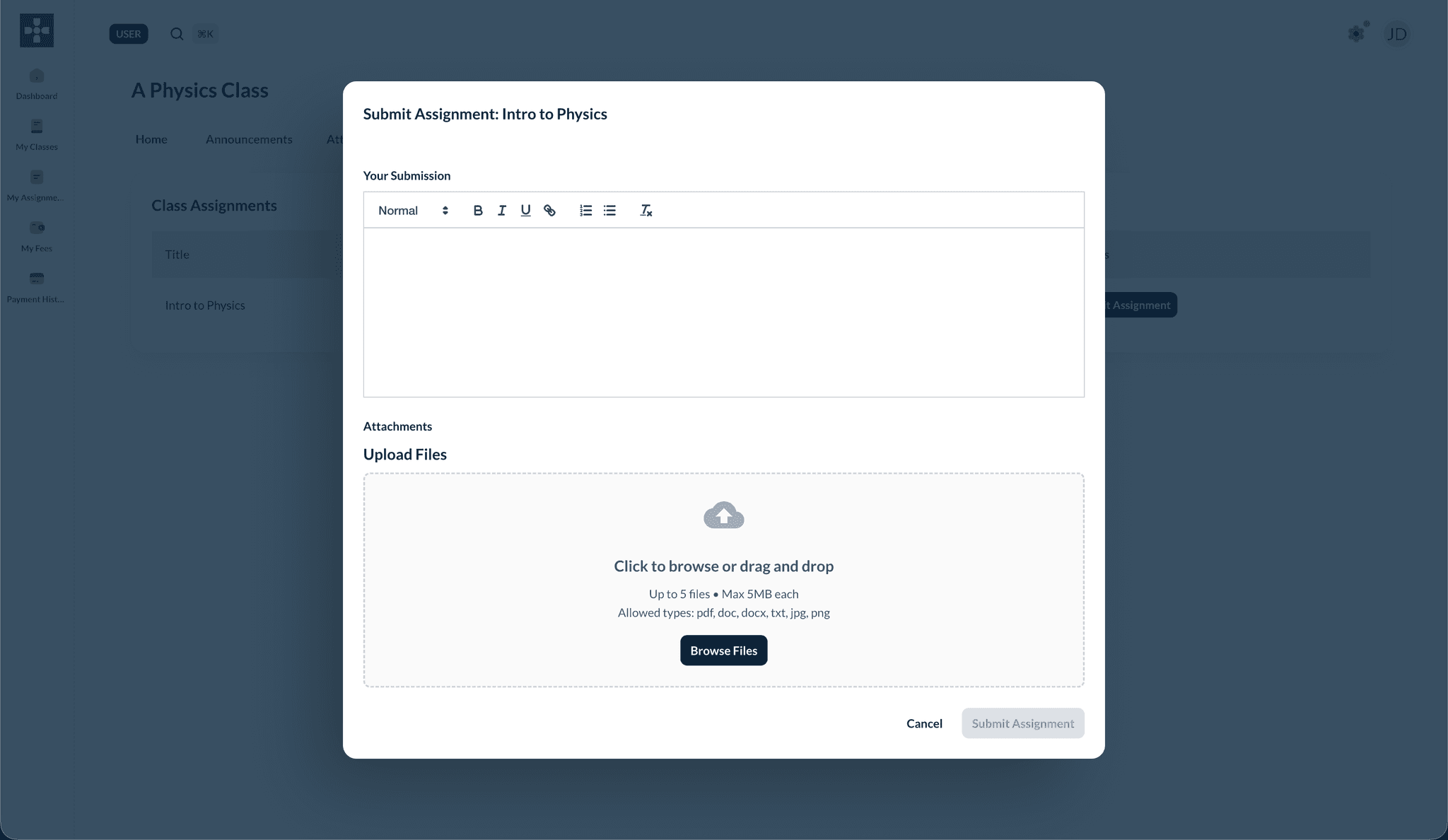
Step 3: Upload Files (if required)
If file upload is required or allowed:
- Click "Choose File" or "Upload File" button
- Select file(s) from your computer
- Wait for upload to complete
- Verify uploaded file(s) appear in the list
- Check file name and size
File Upload Tips
- Ensure your file is in the correct format
- Check file size before uploading
- Use descriptive file names
- Upload one file at a time if multiple files are needed
Step 4: Enter Text Submission (if required)
If text submission is required or allowed:
- Click in the "Submission Text" or "Your Answer" field
- Type or paste your response
- Use formatting tools if available
- Review your text for errors
- Check word count if there's a limit
Step 5: Review Your Submission
Before submitting:
- Review uploaded files (if any)
- Check file names are correct
- Review text submission (if any)
- Verify everything is complete
- Double-check requirements
Step 6: Submit Assignment
- Once everything looks good, click "Submit Assignment" or "Submit"
- Confirm submission if prompted
- Wait for confirmation message
- Note the submission timestamp
Step 7: Confirmation
After successful submission:
- You'll see a confirmation message
- Submission timestamp will be displayed
- Status will change to "Submitted"
- You may receive an email confirmation
Submission Status
After Submission
Your assignment status will change to:
- Submitted: Your work has been received
- Under Review: Teacher is reviewing your submission
- Graded: Teacher has completed grading
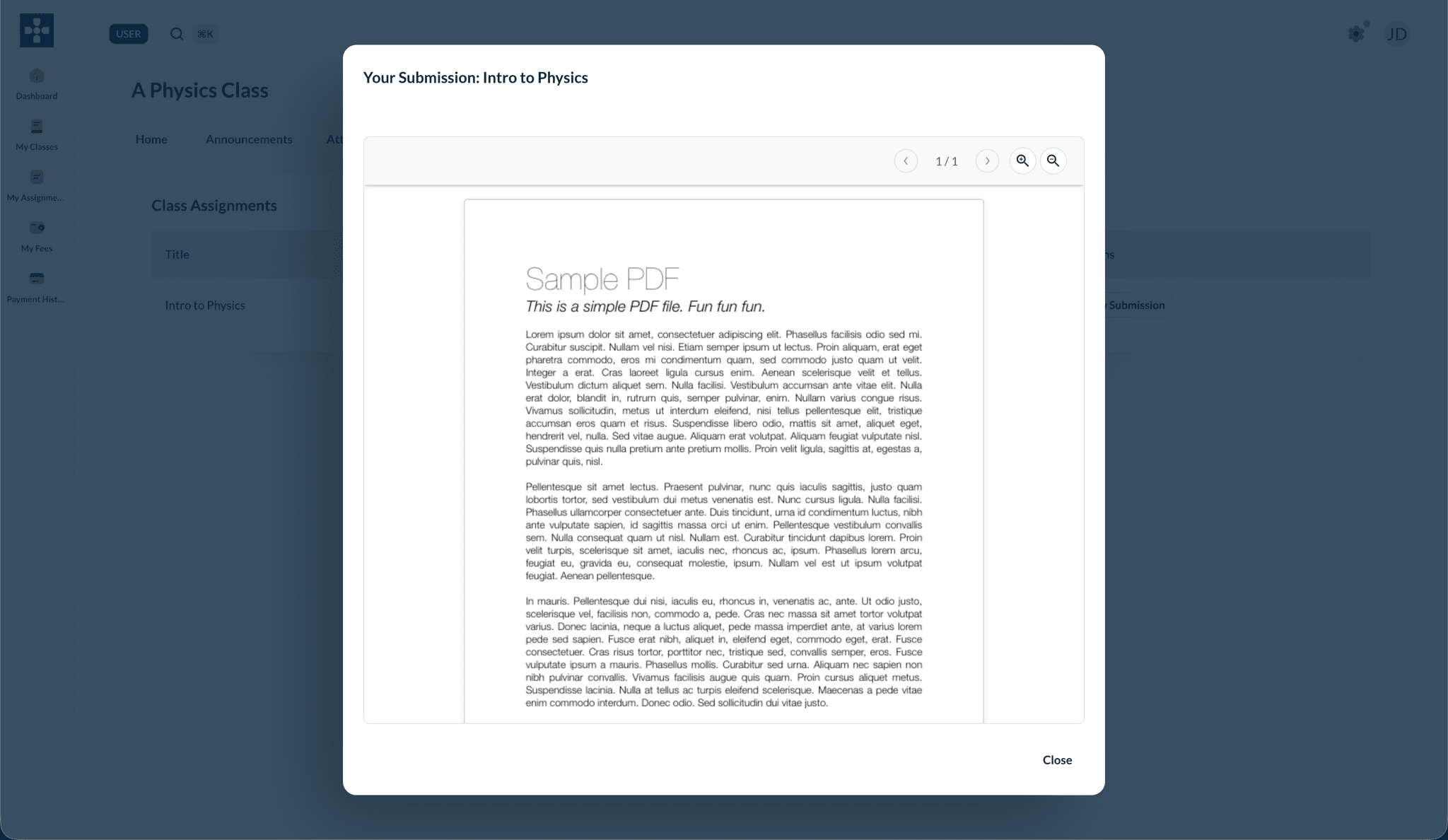
Viewing Submitted Work
- Go back to the assignment
- View your submission
- See submission date and time
- Download your submitted files (if needed)
Editing or Resubmitting
Editing Submission (if allowed)
Some assignments allow editing before the deadline:
- Find your submitted assignment
- Click "Edit Submission"
- Make changes
- Resubmit
Resubmitting (if allowed)
If resubmission is allowed:
- Click "Resubmit" button
- Upload new files or modify text
- Submit again
- Note: Previous submission may be replaced
Resubmission Policy
Not all assignments allow resubmission. Check with your teacher about resubmission policies. Once the deadline passes, submissions are usually final.
Common Submission Types
File-Only Submission
- Upload required file(s)
- No text input needed
- Submit after file upload completes
Text-Only Submission
- Enter your answer in the text field
- No file upload needed
- Submit text directly
Combined Submission
- Upload file(s) if needed
- Enter additional text if required
- Submit both together
Troubleshooting Submission Issues
File Upload Problems
Issue: File not uploading
- Solution: Check file size and format. Ensure stable internet connection. Try a different browser.
Issue: Wrong file format
- Solution: Convert file to required format. Check assignment requirements for allowed formats.
Issue: File too large
- Solution: Compress file or reduce file size. Check maximum size limit in requirements.
Submission Problems
Issue: Cannot submit assignment
- Solution: Verify all requirements are met. Check if deadline has passed. Ensure you're logged in.
Issue: Submission not saving
- Solution: Check internet connection. Don't close browser until confirmation appears. Try refreshing and resubmitting.
Issue: Submitted wrong file
- Solution: If before deadline and editing is allowed, edit and resubmit. Otherwise, contact your teacher immediately.
Best Practices
Related Topics
- Viewing Assignments - Find assignments to submit
- Viewing Grades - Check grades after submission
- Profile Management - Manage your account