
Viewing Assignments
Guide to finding and viewing your assignments
Viewing Assignments
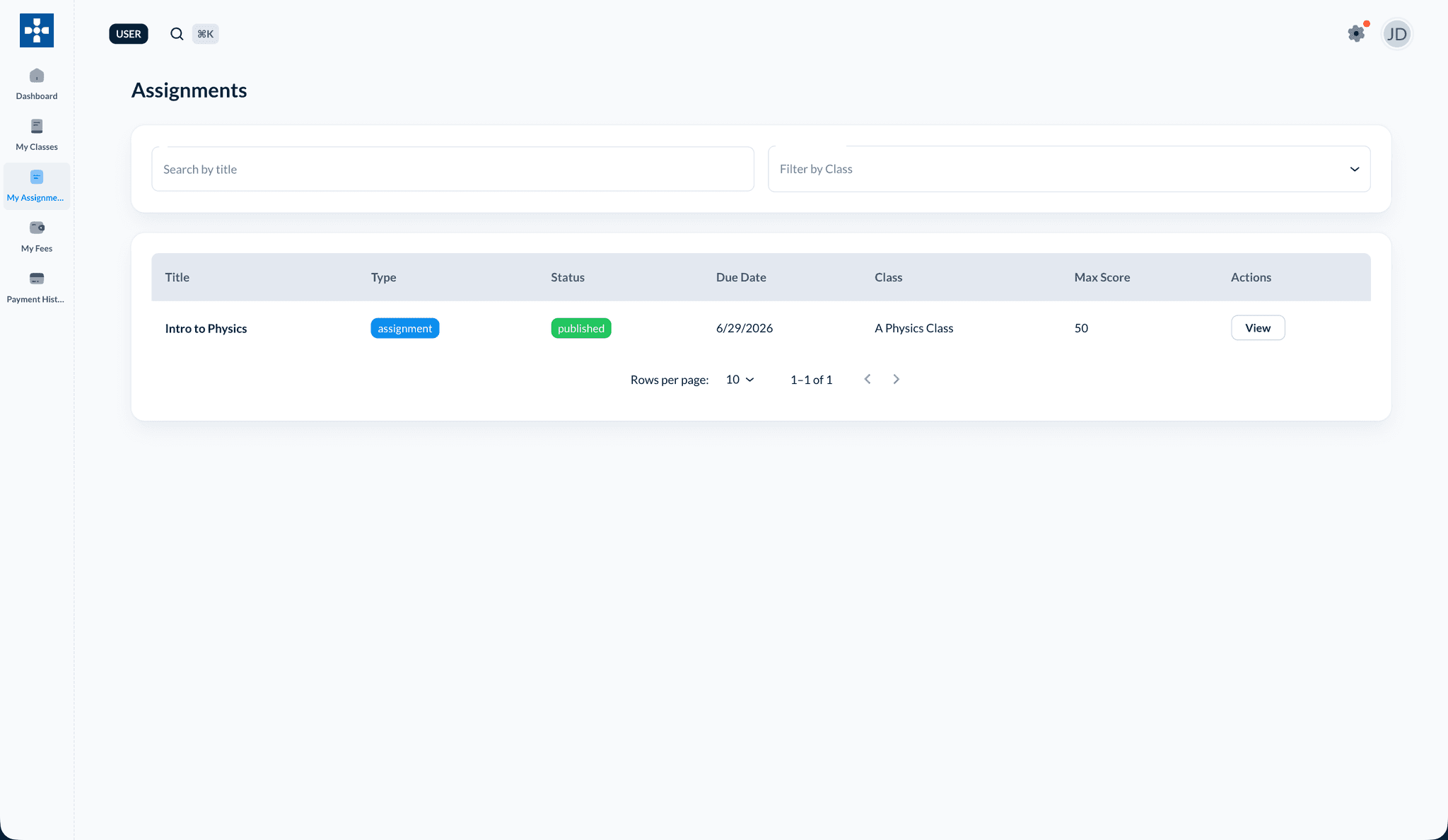
The Viewing Assignments section helps you find, access, and understand all assignments assigned to you across your classes.
Overview
Viewing Assignments enables you to:
- See all your assignments in one place
- View assignment details and requirements
- Check due dates and deadlines
- Access assignment instructions
- Download resources and materials
- Track submission status
Accessing Your Assignments
Viewing All Assignments
- Log in to the student dashboard
- Click on "My Assignments" or "Assignments" in the navigation menu
- View all assignments from all your classes
Assignment List View
The assignments list displays:
- Assignment Title: Name of the assignment
- Class: Which class the assignment belongs to
- Due Date: When the assignment is due
- Status: Not Started, In Progress, Submitted, Graded
- Time Remaining: Days/hours until deadline
- Quick Actions: View, Submit buttons
Filtering Assignments
Filter by Status
Filter assignments by their status:
- All: View all assignments
- Upcoming: Assignments with future due dates
- Overdue: Past due date assignments
- Submitted: Assignments you've already submitted
- Graded: Assignments that have been graded
Filter by Class
- Use the "Class" dropdown filter
- Select a specific class
- View assignments for that class only
Sort Options
Sort assignments by:
- Due Date: Earliest to latest (or vice versa)
- Class: Group by class
- Status: Group by completion status
- Recently Added: Newest assignments first
Viewing Assignment Details
Opening an Assignment
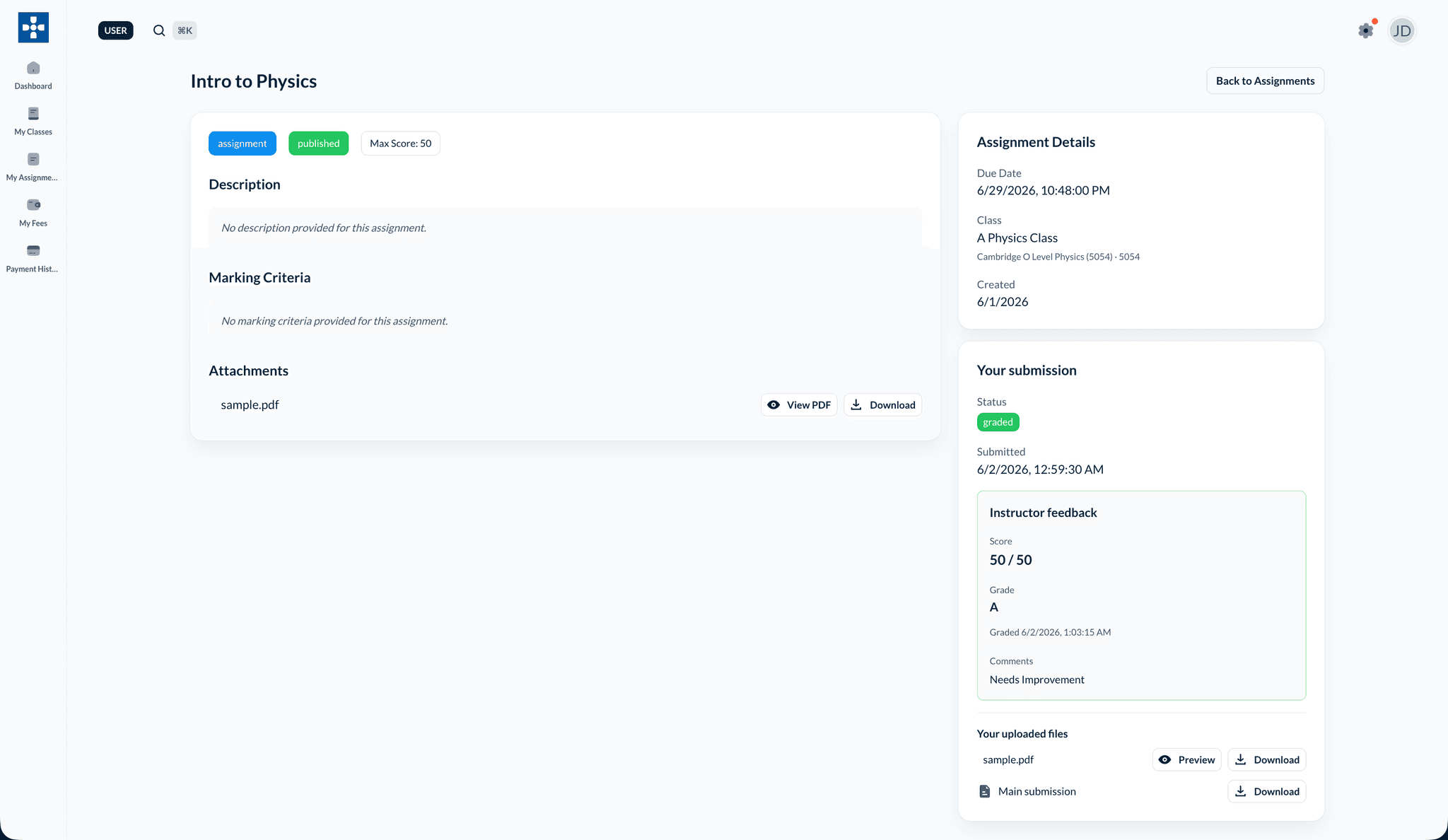
- Click on any assignment title from the list
- View the complete assignment details page
Assignment Information
The details page shows:
- Title and Description: Full assignment description
- Instructions: Step-by-step instructions for completion
- Due Date and Time: Exact deadline
- Points: Total points possible
- Submission Requirements: What needs to be submitted
- Allowed File Types: Accepted file formats (if applicable)
- File Size Limits: Maximum file size (if applicable)
Viewing Resources
- Scroll to the "Resources" section
- View available resources:
- Reference materials
- Example files
- Reading materials
- Templates or worksheets
- Click "Download" to save resources to your computer
Understanding Assignment Requirements
Submission Requirements
Pay attention to:
- File Format: Required file types (PDF, DOC, etc.)
- File Size: Maximum size allowed
- Number of Files: Single or multiple file submissions
- Text Submission: If text input is required
- Both: If both file and text are needed
Grading Information
Review:
- Total Points: How many points the assignment is worth
- Grading Criteria: What will be evaluated (if provided)
- Rubric: Detailed grading breakdown (if available)
Tracking Assignment Status
Assignment Statuses
Your assignments can have different statuses:
- Not Started: Assignment not yet begun
- In Progress: You've started working on it
- Submitted: Assignment has been submitted
- Graded: Teacher has graded your work
- Overdue: Past the due date (if not submitted)
Time Remaining
- Check the "Time Remaining" indicator
- View countdown to deadline:
- Days remaining
- Hours remaining (for assignments due soon)
- Plan your work accordingly
Deadline Reminder
Pay attention to due dates and times. Late submissions may not be accepted or may receive penalties.
Upcoming Assignments
Viewing Upcoming Assignments
- Go to the dashboard
- Check the "Upcoming Assignments" section
- See assignments due in the next few days
- Prioritize your work
Assignment Calendar
- Navigate to "Calendar" view (if available)
- See assignments displayed on a calendar
- View due dates visually
- Plan your schedule
Best Practices
Troubleshooting
Issue: Assignment not appearing
- Solution: Verify you're enrolled in the class. Check if the assignment has been published by your teacher.
Issue: Cannot view assignment details
- Solution: Ensure you're logged in and have proper access. Try refreshing the page.
Issue: Resources not downloading
- Solution: Check your internet connection. Ensure your browser allows downloads. Try a different browser if needed.
Issue: Incorrect due date displayed
- Solution: Contact your teacher if you notice a discrepancy in the due date.
Related Topics
- Submitting Assignments - Learn how to submit your work
- Viewing Grades - Check your grades after submission
- Profile Management - Manage your account