
Viewing Grades
Guide to checking your grades and understanding feedback
Viewing Grades
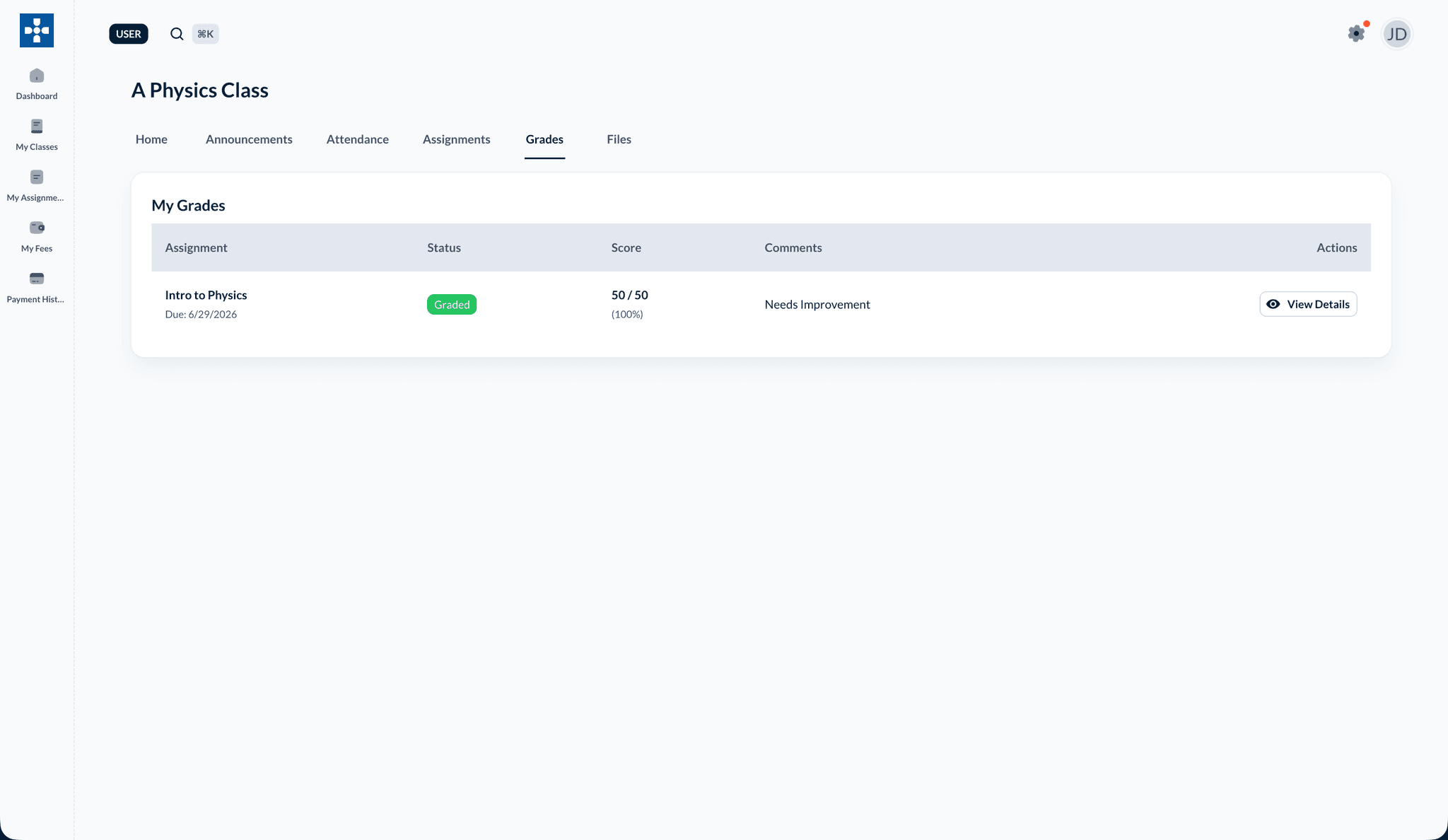
The Viewing Grades section allows you to check your assignment grades, read teacher feedback, track your academic performance, and understand your progress.
Overview
Viewing Grades enables you to:
- View grades for all your assignments
- Read teacher feedback and comments
- Track your overall performance
- View grade history and trends
- Understand your academic standing
- Identify areas for improvement
Accessing Your Grades
Viewing All Grades
- Log in to the student dashboard
- Click on "My Grades" or "Grades" in the navigation menu
- View grades for all your classes
Grades Overview
The grades page displays:
- Assignment Name: Name of the assignment
- Class: Which class the assignment belongs to
- Grade/Score: Points earned and total points
- Percentage: Grade as a percentage
- Status: Graded, Pending, Not Graded
- Feedback Available: Whether teacher provided feedback
Viewing Individual Assignment Grades
Opening Grade Details
- Click on any assignment from your grades list
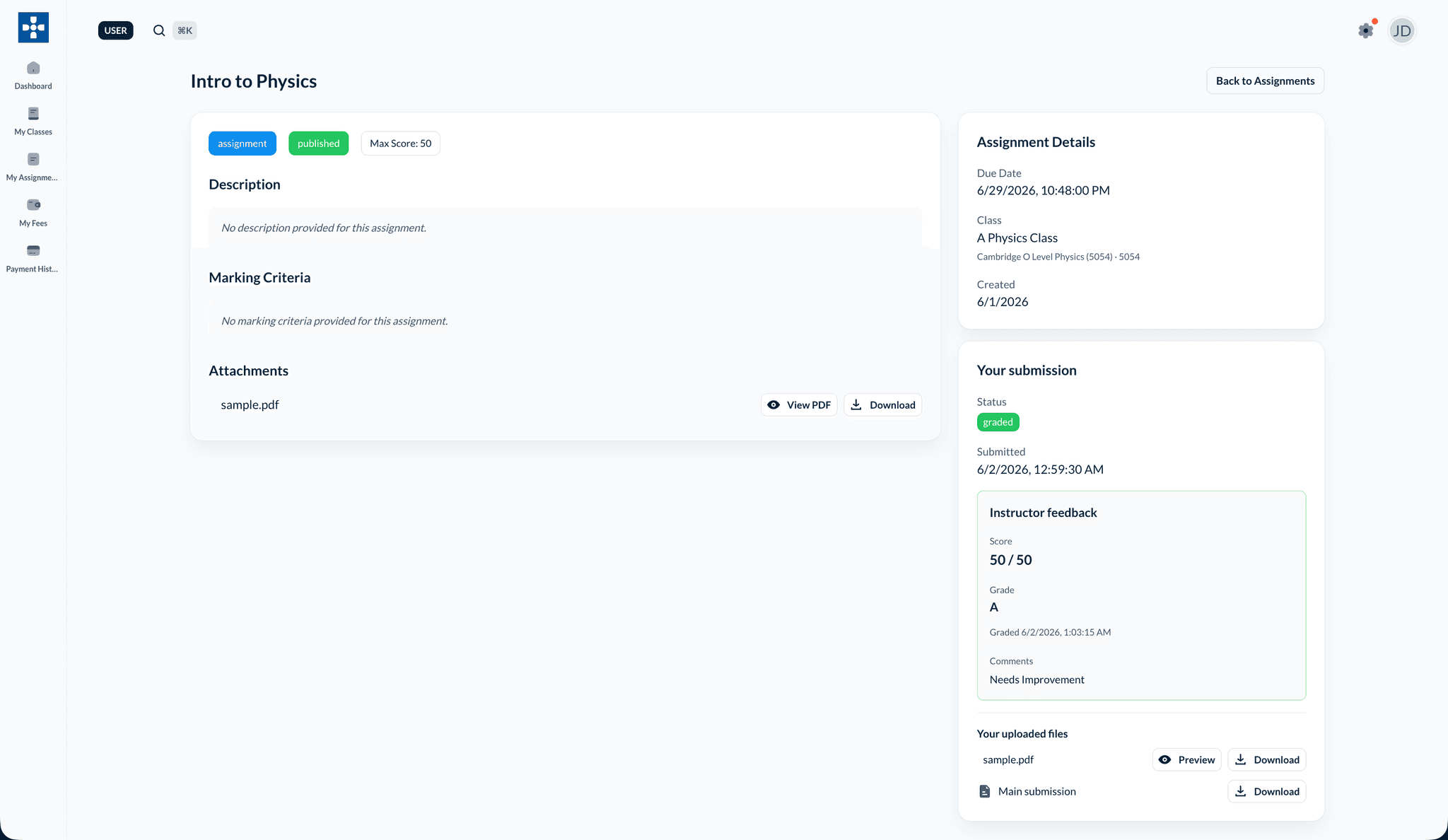
- View detailed grade information
Grade Information Displayed
The details page shows:
- Assignment Details: Title, description, due date
- Your Grade: Points earned out of total points
- Percentage: Your grade percentage
- Letter Grade: If letter grades are used
- Submission Date: When you submitted
- Graded Date: When teacher graded it
Reading Teacher Feedback
Accessing Feedback
- Open a graded assignment
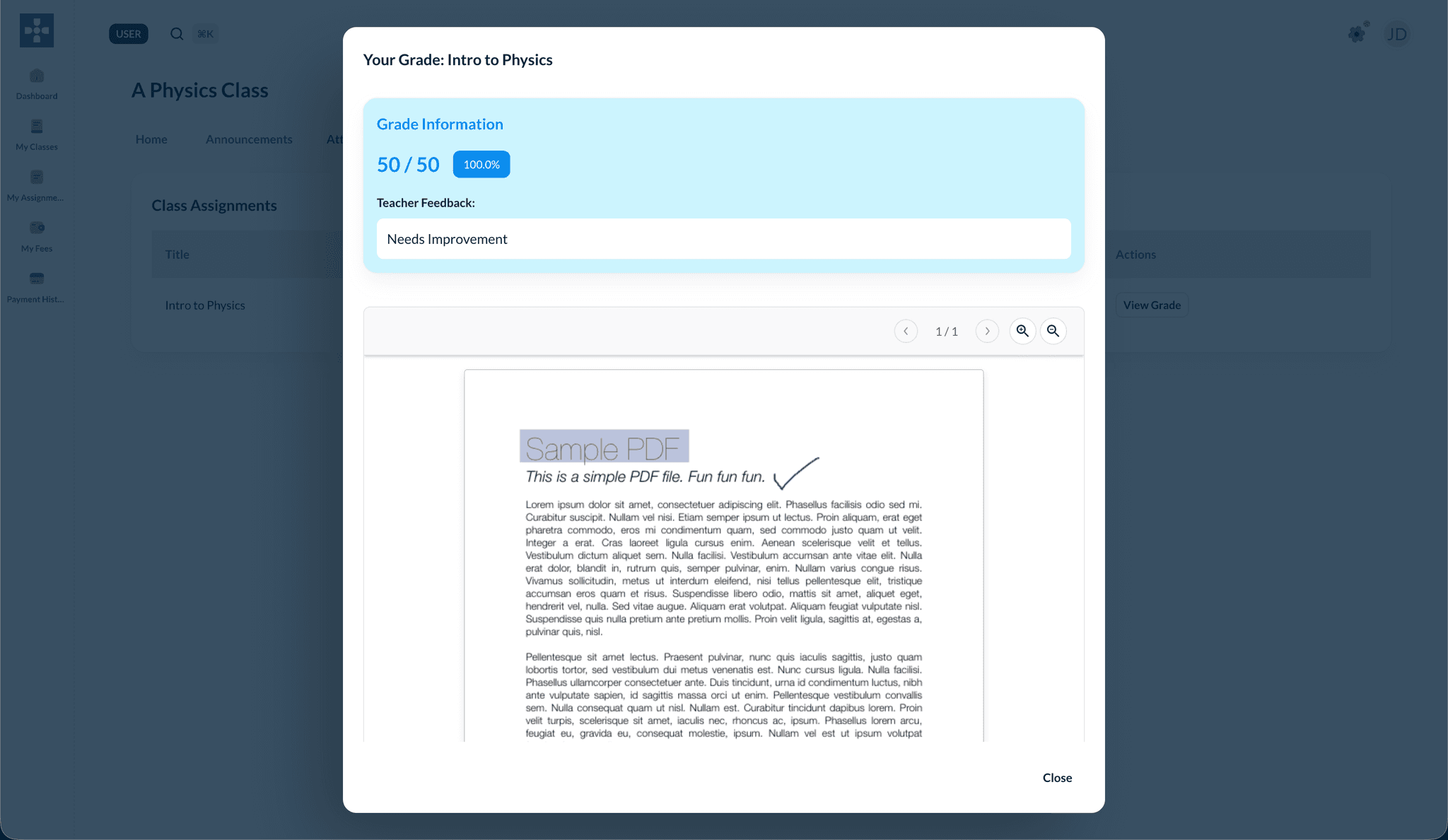
- Scroll to the "Feedback" or "Comments" section
- Read teacher's comments
Understanding Feedback
Teacher feedback may include:
- What You Did Well: Positive aspects of your work
- Areas for Improvement: Suggestions for better performance
- Specific Comments: Detailed feedback on your submission
- Next Steps: Recommendations for future assignments
Read Feedback Carefully
Teacher feedback is valuable for improving your work. Read it carefully and use it to enhance future assignments.
Tracking Your Performance
Overall Grade Summary
View your overall performance:
- Current Average: Your average grade across all assignments
- Class Averages: Average for each class
- Grade Distribution: Breakdown of your grades
- Trend: Whether your grades are improving or declining
Grade Trends
- Navigate to "Trends" or "History" tab
- View visual charts showing:
- Grade progression over time
- Performance trends
- Comparison to class average
Class-wise Performance
- Filter grades by class
- View performance in each class:
- Average grade per class
- Number of assignments
- Best and lowest grades
- Improvement areas
Understanding Your Grades
Grade Breakdown
Understand how your grade was calculated:
- Points Earned: Points you received
- Total Points: Maximum possible points
- Percentage: Calculated percentage
- Weight: If assignments are weighted differently
Comparing to Class Average
- View your grade
- See class average (if available)
- Compare your performance
- Understand where you stand
Filtering and Sorting Grades
Filter Options
Filter your grades by:
- Class: View grades for specific classes
- Status: Graded, Pending, All
- Date Range: Grades from specific time periods
- Assignment Type: If different types exist
Sort Options
Sort grades by:
- Date: Most recent or oldest first
- Grade: Highest or lowest first
- Class: Group by class
- Assignment Name: Alphabetically
Pending Grades
Viewing Ungraded Assignments
- Filter by "Pending" or "Not Graded"
- See assignments awaiting grading
- Check when they were submitted
- Wait for teacher to complete grading
Grading Time
Teachers need time to review and grade assignments. Be patient, and grades will appear once grading is complete.
Grade History
Viewing Historical Grades
- Navigate to "History" or "All Time"
- View grades from previous terms or periods
- See long-term performance trends
- Track improvement over time
Best Practices
Troubleshooting
Issue: Grade not appearing
- Solution: Check if the assignment has been graded yet. Some assignments take time to grade. Contact your teacher if it's been a while.
Issue: Cannot view feedback
- Solution: Ensure the assignment has been graded. Feedback appears after grading is complete.
Issue: Incorrect grade displayed
- Solution: Contact your teacher if you believe there's an error in the grade calculation or display.
Issue: Cannot access grades
- Solution: Verify you're logged in correctly. Check if you're enrolled in the class. Contact support if issues persist.
Related Topics
- Viewing Assignments - See assignments before grading
- Submitting Assignments - Submit work to be graded
- Attendance Tracking - View attendance alongside grades